Downloading to your Computer.
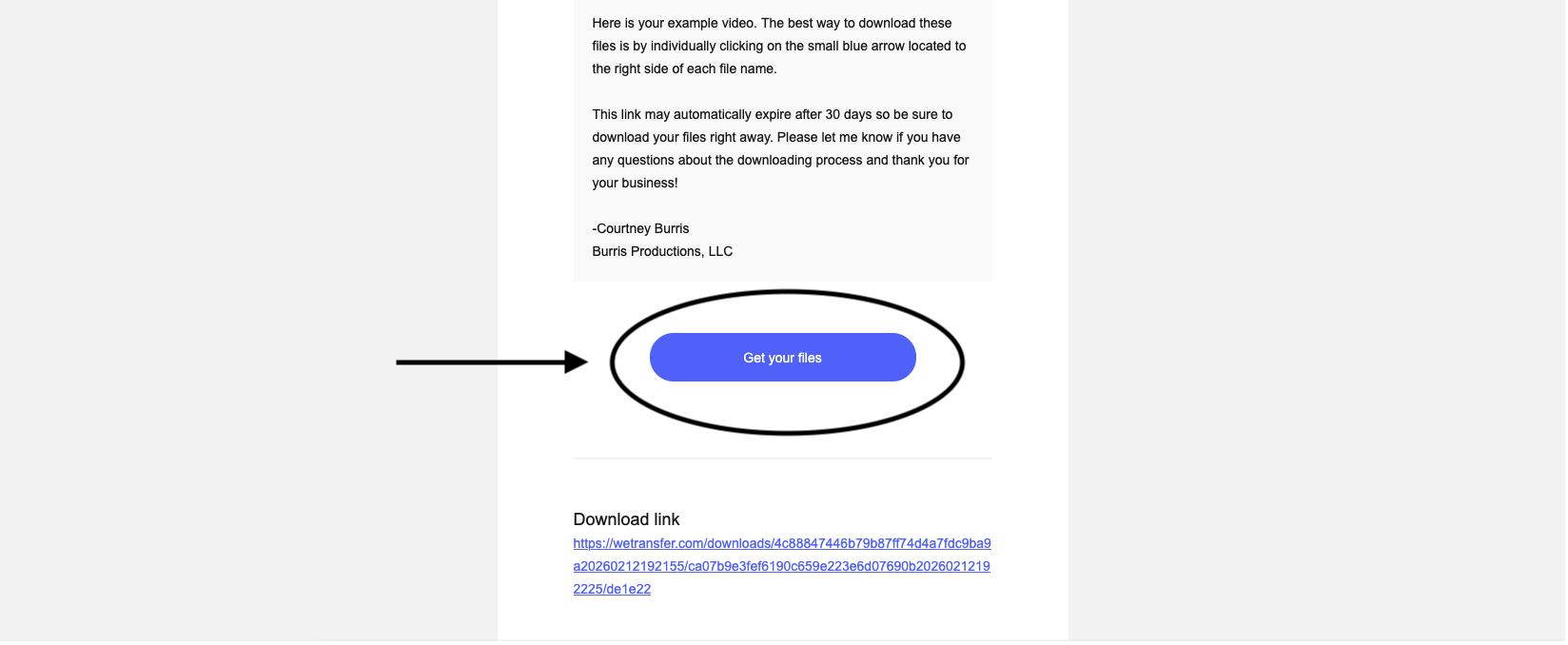
Once you open the email from wetransfer scroll down until you see the blue button that says “Get your Files”. Click on that button.
You may get this screen next. Click the blue “I agree” button. If you don’t get this screen proceed to the next step.

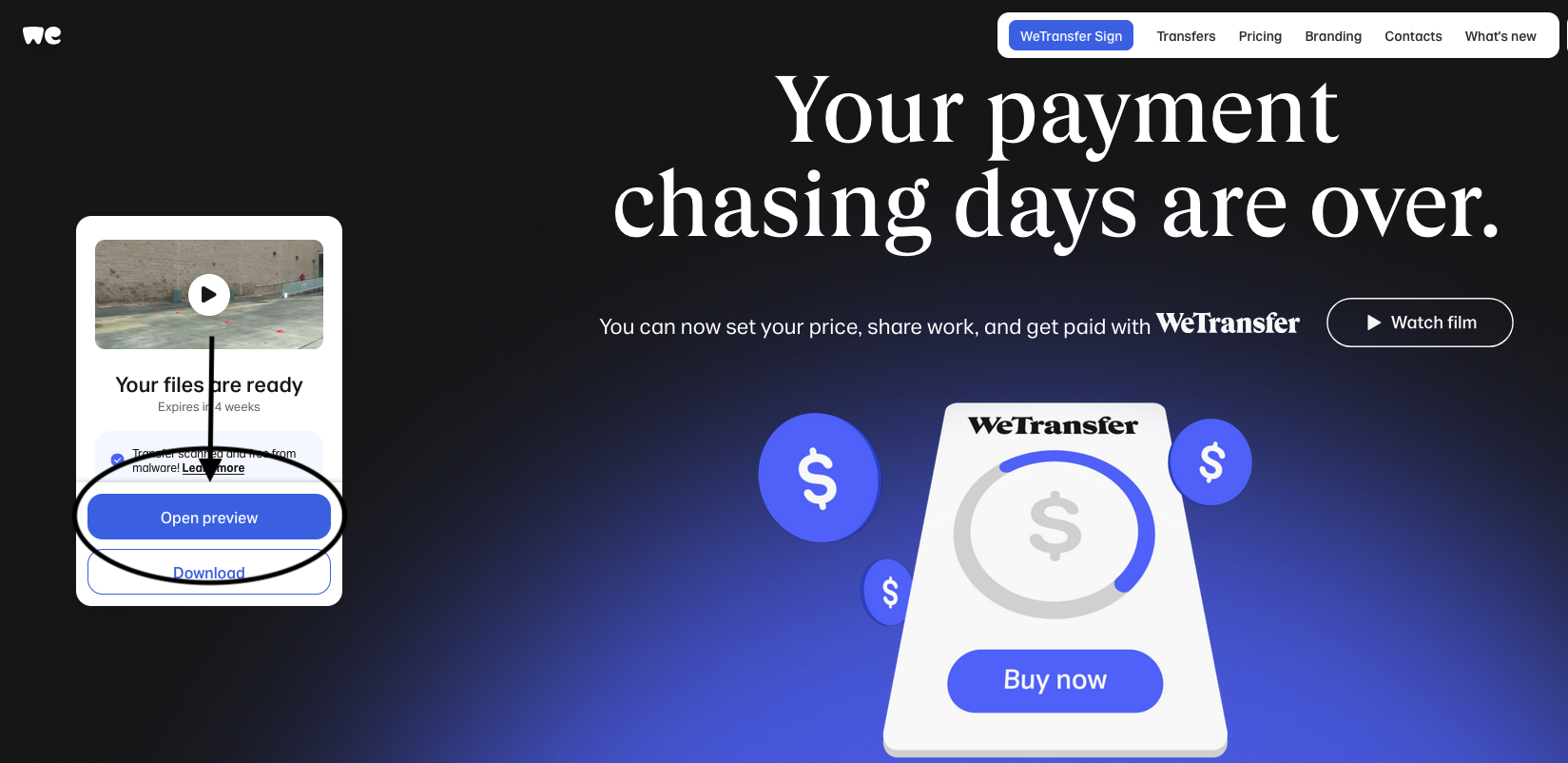
That button will take you to wetransfer. There is then a button that says “Open Preview”. Click on that button.
*DO NOT click on the Download button below the “Open Preview” button*
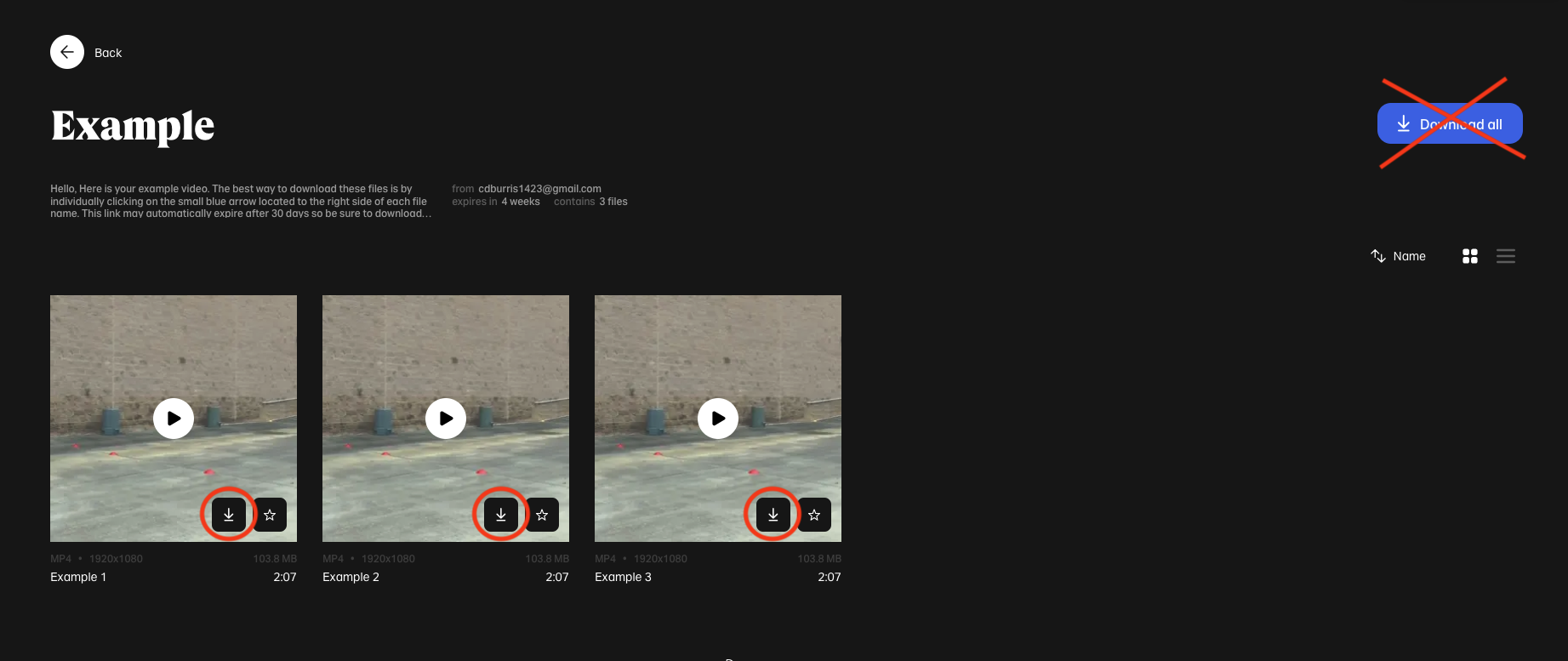
You will then see all of your video files. On each file there will be an arrow pointing down. (circled in red in the picture) Click on each arrow individually, to download each file separately.
*DO NOT click the “Download all” button in the top right corner. It never works properly.
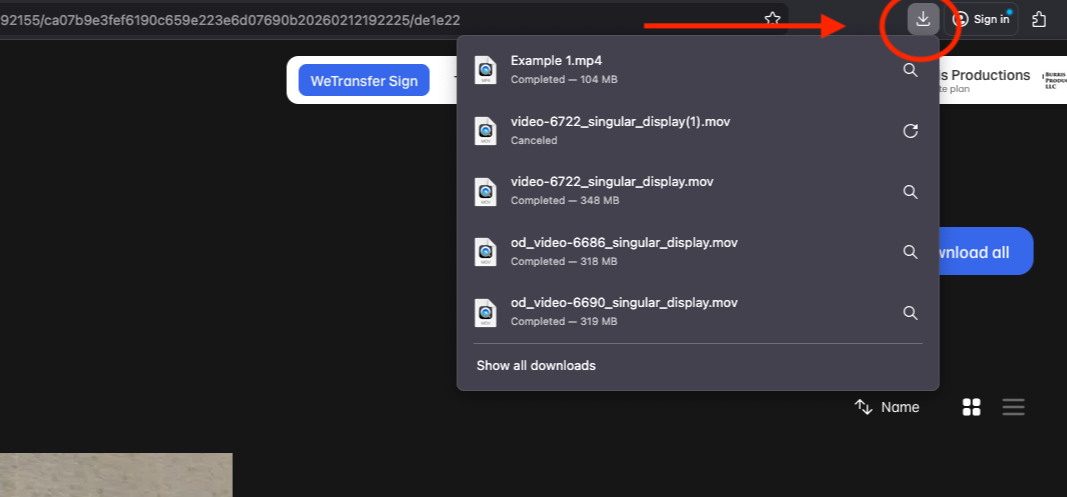
Now all that is left is to wait for your videos to finish downloading. Once they are done downloading you can find them in the top right corner of your browser with the icon that shows and arrow pointing down. Click on that and you will see your videos. Then Click and drag them onto your desktop or into whichever folder you want to store them in.